
Timeline
The timeline is the backbone of the editor. Every change on screen ends up as a frame on a layer, an audio track or a subtitle.
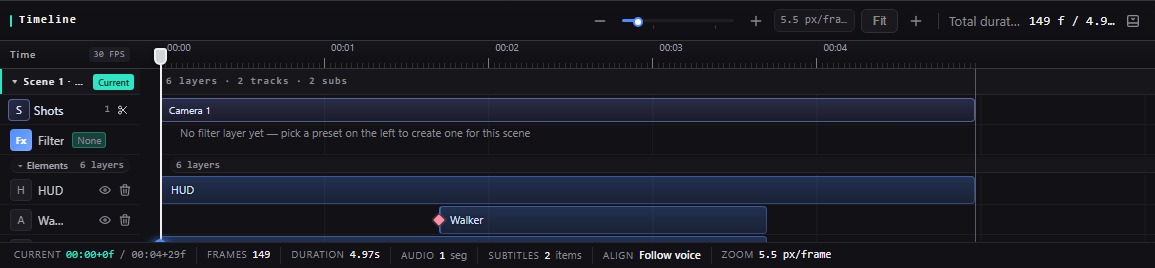
What it does
- Keyframe-driven: key position, scale, rotation and opacity per channel. The default easing is easeOutCubic, and any keyframe can use a different curve.
- Mixed tracks on one screen: layers, shots, subtitles and audio each get a row. Row headers stay fixed while you scroll horizontally.
- Full clip operations: drag to move the start, drag either edge to trim,
Ctrl+Kto split at the playhead,Shift+Deletefor ripple delete. - Zoom and navigation:
Ctrl+wheelzooms around the pointer,Shift+Zfits the window, and markers hold important frames. - Auto-key: when on, changing a property drops a keyframe at the current frame; no need to click the diamond every time.
- Automatic duration: deleting a layer or shortening a clip recalculates the scene length immediately, with no manual total to maintain.
How to use
- Drag an asset from Media, Elements or Text onto the canvas. The layer starts at the playhead.
- Put the playhead on the start frame, change a property, and click the diamond on that property row to set the first keyframe.
- Move the playhead to the end frame and change the property again. With Auto-key on, the keyframe is created for you.
- Drag keyframe diamonds on the timeline to retime them, drag the clip edges to trim, and press
Ctrl+Kto split. - Play the preview, check the pacing, then move on to voiceover and subtitles.
One drag, one undo step
Dragging a clip, typing a value continuously and changing easing each produce a single history entry. Ctrl+Z reverts the whole gesture. View-only actions such as canvas pan and zoom are not recorded.
Boundaries
- Native scrollbars are hidden; scroll with the wheel,
Shift+wheeland the custom scrollbars. - Subtitles in the same scene cannot overlap. New subtitles are truncated to the available gap, and subtitle bars cannot be split.
- Each scene supports up to 8 audio tracks. The default track has no delete button.
Next: Scenes & transitions, or go straight to Export.