
Effects & filters
Effects are applied per layer and every parameter is adjustable. Preview and export share the same drawing code, so what you see is what gets rendered.
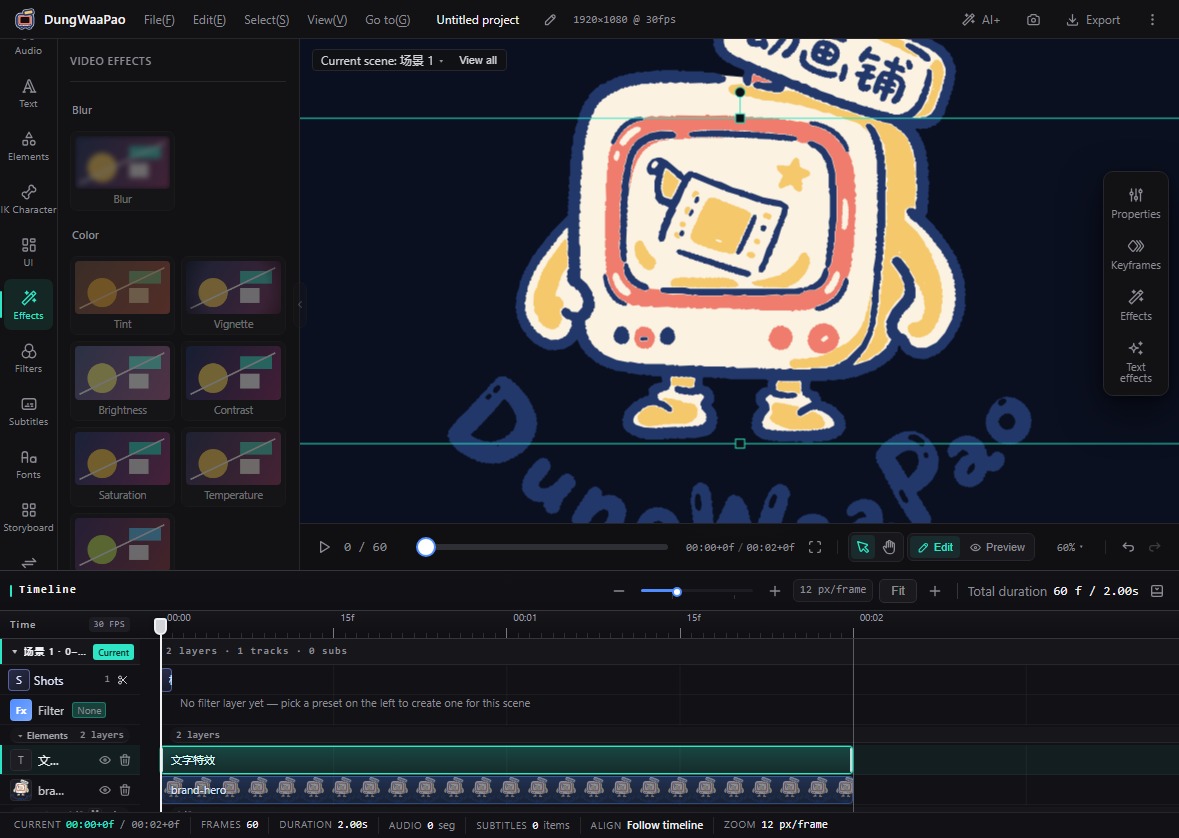
What it does
- Per-layer stacking: effects belong to a specific layer, so different elements in one frame can be treated differently.
- Clear groups: blur, color and stylized effects are grouped by category, with a "View all" link that jumps to the group.
- Adjustable parameters: every effect exposes its own controls and can be removed on its own. Removing it restores the layer immediately.
- Works with keyframes: effects do not change a layer's time window or keyframes; they are image processing, not timing.
How to use
- Select a layer on the canvas or in the timeline.
- Open Effects in the left rail and click a card to add it to the selected layer. Cards are disabled when nothing is selected.
- Switch the dock to Effects and adjust the parameters, or add more effects.
- Remove effects you no longer need. The frame updates right away, and
Ctrl+Zreverts the change.
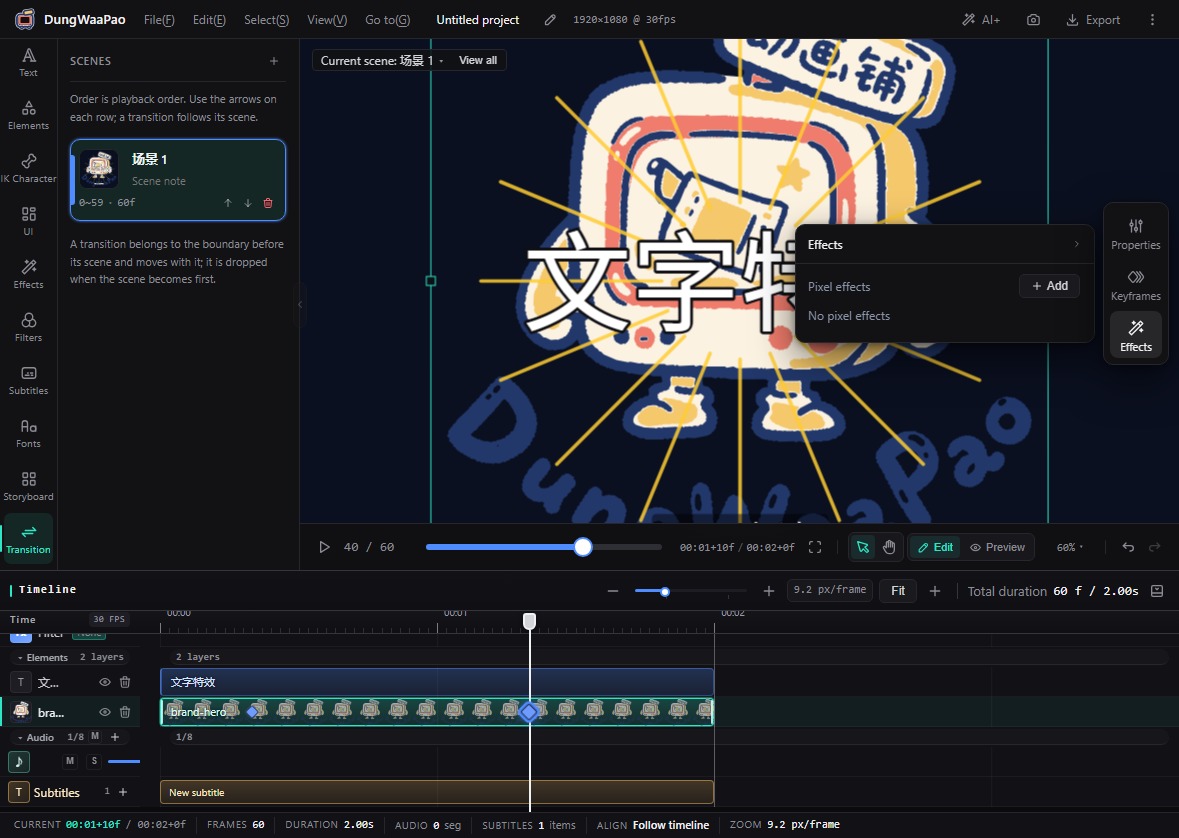
::: note The Filters category is a placeholder Blur, color and stylized looks currently live under Effects. The standalone Filters category in the left rail has no presets yet; use the Effects panel. :::
Boundaries
- Each layer has a limit on how many effects it can carry. Remove an older one before adding more.
- Effects are pixel operations. When combined with rotation or scaling, edge behavior at the frame border follows the exported result.
Next: Text & subtitles.