
Export
What you get is not a screen recording. The server renders every frame and ffmpeg encodes a standard file.
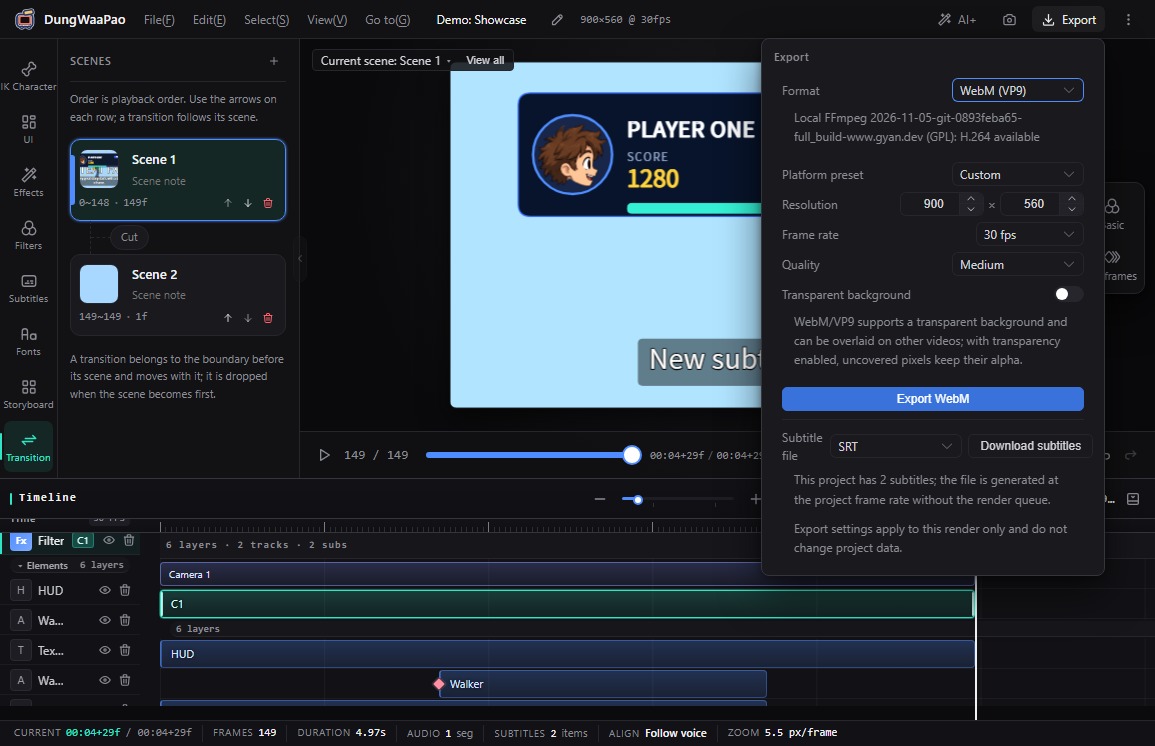
What it does
- MP4 (H.264): with audio, the output is H.264 + AAC at 48 kHz stereo, aligned to the total frame count of the timeline.
- WebM (VP9): optionally exports with an alpha channel for overlaying on other videos.
- GIF animation: set loop count and dithering, then preview the result in the panel.
- PNG sequence (zip): export a frame range as PNGs in a zip, with an optional transparent background.
- Subtitle files: download SRT or WebVTT built from the project frame rate without running a render.
- Controllable progress: the panel shows progress and state, a running render can be canceled, and a finished render offers a player and download link.
How to use
- Click Export in the top bar and choose a format. Resolution and frame rate default to the project settings.
- Fill in the format-specific options: loop and dither for GIF, quality and transparency for WebM, frame range for PNG.
- Click Export. When the progress bar finishes, preview and download the file.
- To get subtitles on their own, pick SRT or WebVTT under Subtitle files and download them.
MP4 depends on your local ffmpeg
The bundled LGPL ffmpeg build has no libx264, so WebM, GIF and PNG sequences are available by default. MP4 requires a local ffmpeg with libx264 configured in dwp.config.json or FFMPEG_PATH / FFMPEG_DIR. When it is unavailable, the export panel disables MP4 and explains why instead of silently switching formats.
Boundaries
- Export settings apply to this render only and do not change project data. Closing the panel does not stop a background render.
- The Export → Video → WebM and Export → Sequence → PNG sequence menu items are disabled placeholders; use the top-bar Export panel.
- Renders run with concurrency 1 and a timeout. Canceling or timing out kills ffmpeg and removes the temporary frame directory.
That completes the eight core capabilities. Head back to Getting started for the full workflow.