
Shots & camera moves
Scenes decide which part of the story you tell. Shots decide how that part is framed. Every scene has a shot row.
What it does
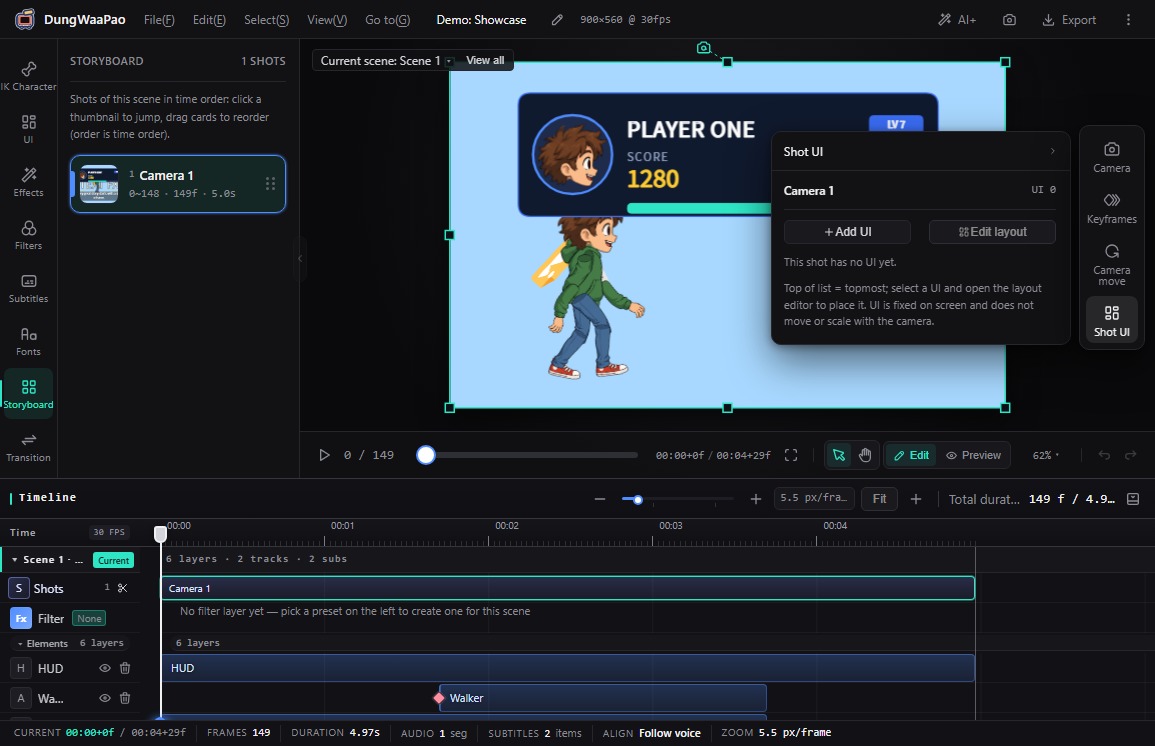
- Split shots: click + on the shot row header to cut a new shot at the playhead.
- Independent framing: each shot has its own position X/Y, scale and rotation. Cuts between shots are hard cuts.
- Camera keyframes: key the camera inside a shot to push in, pull out, pan or rotate. Camera keys are counted inside each shot.
- Storyboard panel: list the shots of the current scene in time order, jump by thumbnail, and drag cards to reorder them.
- Reset camera: restore the default framing of the current shot when the numbers get out of hand.
How to use
- Click + on the Shots row in the timeline. The playhead becomes a new cut point.
- Select a shot. The dock switches to Shot and shows position, scale and rotation.
- Put the playhead on a frame inside the shot, change the values, then click the keyframe button for the current frame. With Auto-key on, just change the values.
- Drag either end of a shot to move the cut, and click × on the shot to delete it.
- Open Storyboard in the left rail to jump between shots and drag cards into a new order.
::: note The camera only changes framing Camera moves do not change the scene duration, and they do not move audio or subtitles on the absolute frame timeline. :::
Boundaries
- Shot boundaries are hard cuts. Animated transitions happen inside a shot; transitions between shots are set from the transition badge in the Storyboard panel.
- Camera keyframes restart from 0 when you switch shots; frame numbers are local to each shot.
Next: Effects & filters, to shape the look of the frame.